


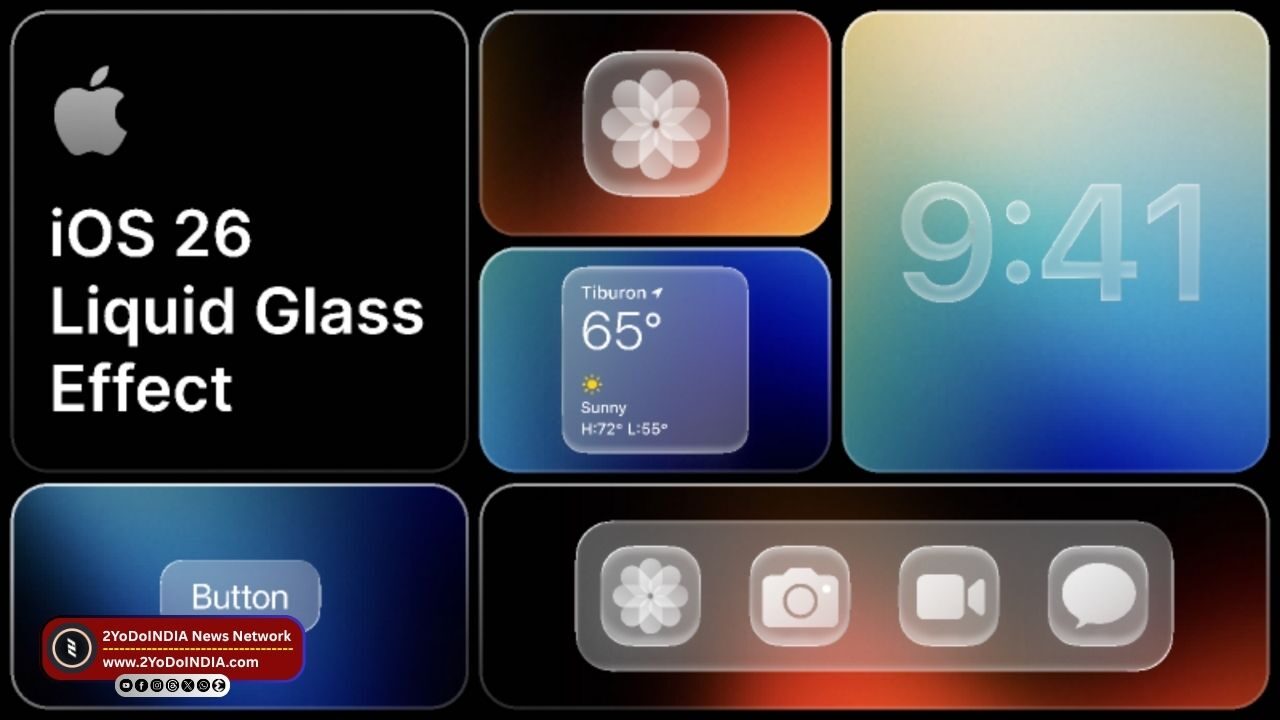
Apple release iOS 26.1, the first major update to iOS 26. As it is available for the iPhone 11 series and newer generations, including the second-generation iPhone SE. With iOS 26.1, you can now adjust the Liquid Glass effect using a new toggle that makes it less translucent.
Liquid Glass setting, comes with iOS 26, drew criticism because its high translucency reduces readability and looks overly glossy.
Many users find it distracting and inconsistent across wallpapers.
iOS 26.1 addresses this by adding a toggle to adjust the opacity.
How To Turn Off the Liquid Glass Effect on iOS 26.1?
Follow These Steps:
- Ensure your iPhone is update to the latest version of iOS 26, i.e, iOS 26.1, not iOS 26.0.1, which you might already have install.
- After updating, you can easily adjust the new look of iOS 26 with a quick settings change.
- Go to Settings.
- Then find Display & Brightness.
- Tap Liquid Glass.
- Here, you’ll find two options, Clear and Tinted.
- The Clear option keeps the glossy, glass-like effect and Tinted tones it down, giving the interface a more opaque and subtle appearance.
Choosing the Tinted option reduces the transparency of the Liquid Glass effect, muting the glossy reflections and giving the interface a flatter, more neutral look that improves readability and consistency across wallpapers.
As the change may seem minor at first glance, it represents a notable shift in Apple’s approach to design flexibility.

