


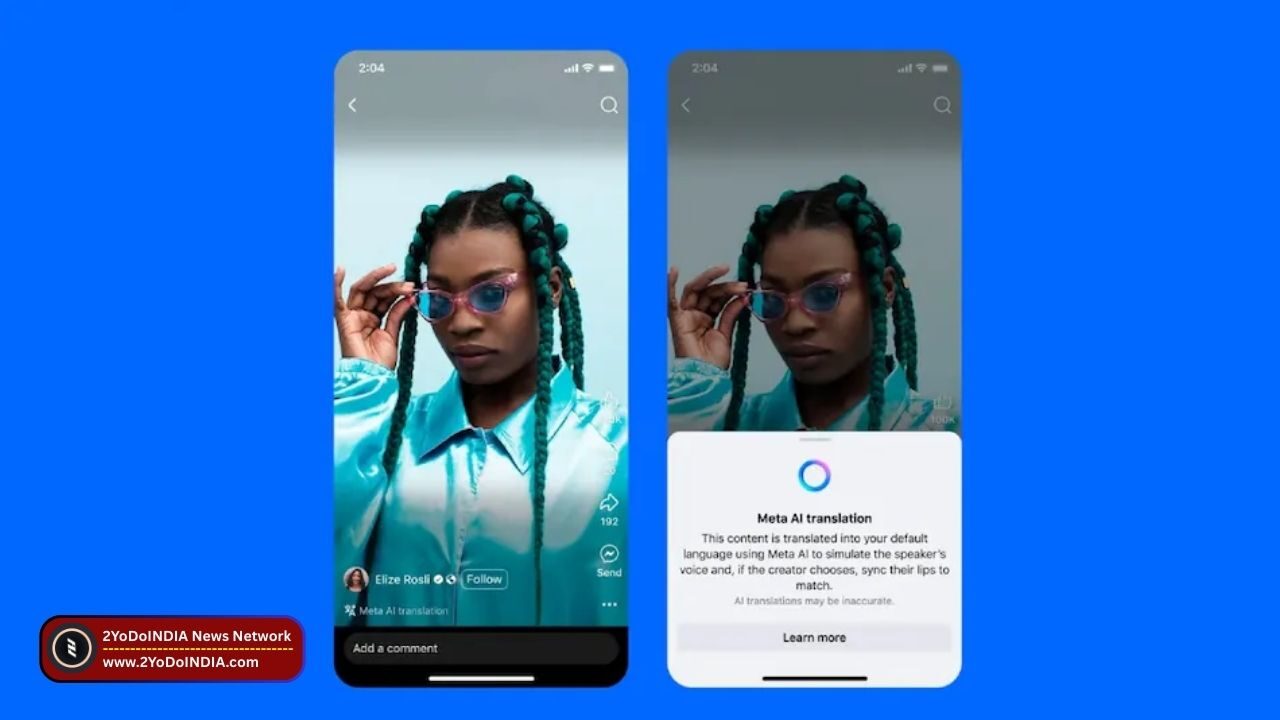
Meta is now expanding its AI-power voice translation feature to Facebook and Instagram users worldwide. This tool enables creators to reach a wider audience by automatically translating spoken content into different languages.
As start, the translations are available in select languages only.
Using generative AI, this feature can translate voice and optionally sync the lip movements to match.
Translated Reels will appear in viewers’ preferred language with a note indicating that Meta AI handled the translation.
What is Meta AI Translations?
As per a blog post, Meta announce that it is expanding Meta AI Translations that, when enable, can automatically dub and lip sync reels into another language.
This tool allows users to speak to viewers in their own languages and helps creators to reach and better connect with audiences all over the world.
Meta says the AI Translations mimics the sound and tone of your own voice, making the translated audio feel natural and true to you.
This lip-syncing feature aligns your mouth movements with the translated speech, creating the effect that you’re speaking the language.
You can enable or disable the feature, and review or remove translations whenever they like.
Meta AI Translations are initially available for English-to-Spanish and Spanish-to-English.
Also, Meta has plans to support more languages soon.
This feature is accessible to Facebook creators with at least 1,000 followers and all public Instagram accounts.
How to use Meta AI Translations on Facebook?
Follow These Steps :
- Before publishing your reel, tap Translate your voice with Meta AI.
- Toggle the options to enable voice translation and lip syncing if desire.
- Click Share now to publish the reel with translation in English or Spanish.
- If you’d like to preview the translation first, enable the review toggle.
- You’ll then get a notification (or check the Professional Dashboard) to review and either approve or reject it.
- This won’t affect your original reel.
Translate reels are shown to users in their preferred language, with a note indicating they were translated by Meta AI.
You can opt out of translations for specific languages by selecting Don’t translate in the audio and language section within the three-dot settings menu.
After publishing translate content, you’ll get a new view breakdown by language.
This lets you quickly see which languages your audience is watching in, helping you gauge the performance of your translations.
Meta recommends using the AI Translations feature mainly for face-to-camera videos for the best results.
You should face forward, speak clearly, and keep their mouths visible.
On Facebook, translations support up to two speakers, and it is best to avoid overlapping speech.
Also, keeping background noise and music minimal helps ensure more accurate translations.
Also, Meta confirm that creators with a Facebook Page can now upload up to 20 dubbed audio tracks to a single Reel to reach a wider audience.
You will hear your reel in their prefer language.
You can head to the Reels composer in Meta Business Suite, check Upload your own translated audio tracks under Closed captions & translations, then upload and tag each track with the corresponding language.
One can edit these tracks before or after publishing.
When live, the reel will play in the viewer’s chosen language, just like with Meta AI translations.

