


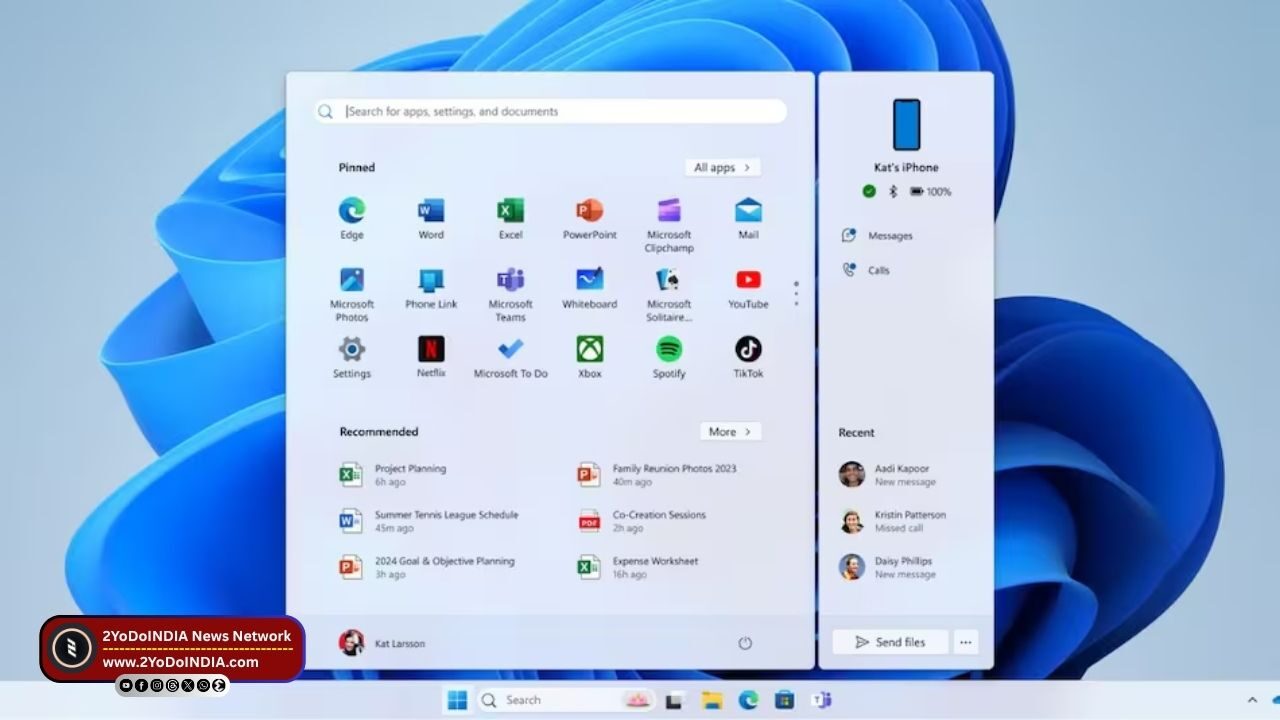
If you connect your Android phone to a Windows PC brings a range of convenience and productivity benefits, especially if your work involves using both devices. As there are many apps available on Play Store for syncing your phone with your PC, Microsoft’s Phone Link app is one of the most popular solutions for integrating the two platforms.
Phone Link allows seamless connection between your phone and PC over Bluetooth, Wi-Fi, and mobile data.
When connect, you can manage calls, respond to messages, get notifications, and access their phone’s photos right from the desktop.
How to Set Up Microsoft Phone Link?
You are require to sign in with a Microsoft account to use Phone Link.
Some features, like calling, require Bluetooth to be enable on both devices.
Follow These Steps :
- Open the Phone Link app on your Windows PC.
- If Phone Link isn’t already install on your PC, you can download it from the Microsoft Store
- A pop-up window will appear, and choose Android as your device type.
- Sign in with your Microsoft account
- On your Android mobile phone, install the Link to Windows app from the Google Play Store
- Open the app and sign in with the same Microsoft account.
- Tap Link your phone and PC, then scan the QR code shown on your PC with the in-app camera.
After successfully linking your Android phone to your Windows PC, you’ll see a welcome screen confirming the connection.
To get start, you must grant permissions for accessing contacts, messages, call logs, media, and notifications.
The Phone Link displays the main features, including Messages, Calls, Apps, and Photos, at the top of the interface.
Clicking the system tray icon shows recent apps.
Notifications appear in a dedicated left-side panel.
When set up, you can send and receive text messages directly from your Windows PC, take or make calls via your phone’s network using Bluetooth, and instantly access recent photos.
You will get access to the call history and contacts on the Windows PC besides making calls.
You can also drag and drop, or copy and paste the images into other apps.


